Showing posts with label Adobe Reader. Show all posts

Tuesday, October 16, 2012

Adobe Reader XI for Knitters

In my knitting bag, you'll find several mangled, folded up, scribbled-on patterns. To keep track of where I'm at in a pattern, I used to use paper sticky notes. I like the light yellow ones, because the paper is thin enough for me to be able to slightly see what is underneath it. Yet, because they are adhesive, I can easily more the sticky note after each row, keeping track of my progress.

If you are a knitter with a tablet or laptop, I'd like to introduce you to a different, perhaps easier way to keep track of your place in your pattern. With the recent release of Adobe Reader XI, knitters now have a great resource for their tool bag. This tutorial will use a charted color pattern, but this technique will just as easily work with a charted lace pattern. First, you'll need a PDF of your pattern.

Open the PDF in Adobe Reader. There are two options for opening files in Reader: Opening from your local hard drive and opening from an online account.


The first option is to open a file on your local hard drive...which is pretty self-explanatory. It's just a PDF located on your computer.

The second is opening a file from an online account, such as Acrobat.com. (Side note: The drop down for Open from Online Account is not exactly clear. I think that Open from Online Account should be outside of the drop down (like Show); it should not be the first item the the drop down. Regardless, if you are opening a file from your local hard drive, you can ignore this confusing drop down menu.)

However, storing your patterns on an online service such as Acrobat.com may be a good solution for you if you don't want to carry hardcopy patterns, have a tendency to lose papers, or need to have access to your pattern on multiple devices.

Once your pattern is open, click on the Comment pane. If you are used to used paper sticky notes, your first inclination may be use the Sticky Note tool to track your progress in your charted pattern. Let's explore why this isn't the best tool for the job.
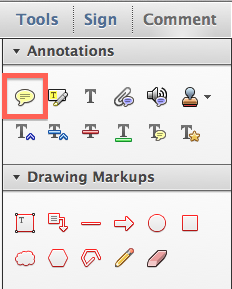

When you first click on the page with the sticky note tool, two things happen simultaneously: 1) A sticky note icon placed on the page. 2) Near the sticky note icon is a light yellow pop-up where you can type notes. The pop-up note will by default line up on the edge of the document. So if you zoom in and out, the location of the pop-up note will not stay constant relative to your pattern. It will always align to the side of your page.


Now you can choose a different color, icon, and opacity for your sticky note. This can be useful if you need to increase or decrease contrast between your sticky note and the page's content. You can easily type notes to yourself in typing area of the sticky note.


You can also move the pop-up note separately from the actual sticky note itself. However, the size of the sticky note and icon remain relatively constant on the page, no matter if you're zoomed in to 800% or zoomed out to 50%. This means that the size of the sticky note and placement of the pop-up are completely independent of the zoom level. So you can't count on them to visually stay where you put them.

What neat about sticky notes (and all other comments for that matter) is that you can change their color and opacity. Right-click on the sticky note and choose "Properties." There are a whole host of icon and color choices.


While sticky notes are great for other uses, in order to more easily track my progress in a charted pattern, I prefer to use a different tool. I like the Rectangle tool.


To make a rectangle, click on the rectangle tool and draw a rectangle on your page. The default rectangle is has a red stroke and no fill. But we can easily change this.


Right click on the rectangle and choose Properties (or press Cmd/Ctrl + I).


Here you can change the stroke and fill colors, as well as the opacity.


You may need to experiment with your Rectangle properties in order to find what works best for your pattern. See how my yellow rectangle has low contrast against my pattern?


By changing the color and opacity, now we have a sticky note that has a higher contrast between the different colors in the pattern.


The beauty of the rectangle tool is that the size of the rectangle stays constant relative to the zoom level. So when viewing the page at 400%, the rectangle will be four times larger than when viewing the page at 100%. Basically this means that the rectangle will stay where you put it, and remain correctly sized and proportioned.

100% Zoom

400% Zoom

In previous versions on Reader, users only had access to the Sticky Note Tool, not any Drawing Markup tools. But with the release of Reader XI, users can "comment" on any PDF you want (barring any security settings that the publishers may have imposed). Better still, you can Save the PDF, and your "comments" will still be there in the exact same place the next time you open the PDF.

Edit: 9-13-918
If you regularly use PDF annotations, check out my article on Bluebeam Revu. It's an amazing program designed specifically to meet the needs of users in Architecture, Engineering, and Construction.

Thursday, October 4, 2012

Saving PDFs for Reader Users: the How and Why

In a recent Raleigh InDesign User Group meeting, we discussed how to collaborate with non-InDesign Users. The most popular method is by using PDF commenting tools. While my ideal workflow might include a copy a Acrobat Professional for every user, I realize that most people only have a copy of the free Adobe Reader. However, even with this free software, the other people in your workflow can still comment on your PDFs. The trick is that you need to save your PDFs with a setting that allows Reader users to comment on the document.

Here is what a standard PDF will look like when opened in Reader X. The Comment Pane is fairly stripped down. Users can either add Sticky Notes or Highlight Text. That's it. But what if they want to replace text? Or cross out text? Or add a text box? They can't.


The trick is to save the PDF with the aforementioned special setting. However, this setting is located in two different places, depending upon which version of Acrobat you are using.

If you are in Acrobat 9, this setting is located under Advanced>Extend Features in Adobe Reader.


If you are using Acrobat X, this setting is under File > Save As > Reader Extended PDF>Enable Additional Features. This will give Reader Users access to the most features.


Once your PDF is saved with this setting, here is what it will look like in Reader. Under the Comments Pane, they now have access to all the Annotations tools (not just sticky notes and highlighters).


Further down in the Comment Pane are the Drawing Markup tools.


There 's also a whole new Pane that is now accessible to Reader users of this PDF: the Extended Pane. Here, Readers users can place a signature, add a time stamp, or use the "Add or Edit Text Box" tool (which was formerly known as the Typewriter Tool).


The upcoming Adobe Reader XI makes it even easier for Reader Users to comment on your PDFs. Stay tuned!

Thursday, March 10, 2011

An Easier Way to Open Web-based PDFs from Safari

In the past, I struggled with how to easily work with PDFs from Safari. I used to save the PDF to my desktop, then launch Acrobat, and then open the PDF in Acrobat. I wanted to find an easier way. Here are some of the ways I use web-based PDFs on an everyday basis.
  • Filling in PDF form fields and saving the completed document...with completed form fields intact
  • Saving PDFs that are loaded as part of a web archive
  • Properly viewing PDFs that I know have interactive features such as buttons and rollovers
  • Because I'm curious, I want to see the Document Properties of the PDF (who made it, if there are any keywords applied, if it has embedded fonts, and most importantly, if it was created by a respectable software).
To demonstrate how to more easily work with PDFs, we'll go through the task of downloading some PDF bank statements from online banking.


I've got twelve different PDFs that I need to download, so I need to find a way to make the process easy. And it should be easy, right? PDFs make everything better, don't they?

So, I've got my first PDF loaded, and I try to save it. But it is saving as something called a .webarchive. A what? I don't know what a .webarchive is, nor what types of files it could contain. So I want to stay away from this mystery file type. 


I know my bank statement is a PDF, so I just need to find the best way to save it as a PDF. In Safari, when you are viewing a PDF, if you hover near the bottom of the PDF, you'll get a little pop-up that allows you to save the PDF to your download folder.


Unless you've changed the default setting in Safari preferences, the files will automatically download into your Downloads folder.


So saving to the downloads folder seems like a pretty good solution. So one by one, I save the PDFs to my Downloads folder. But then I take a look at the file names and they are very cryptic and need to be changed.


So I went back and looked at the other buttons that show up at the bottom of a PDF viewed in Safari. The button on the far right is "Open PDF in Preview." I love Preview and use it every day for certain purposes, but it's not my first choice when I want to view the metadata of a PDF. (To see what I use Preview for, read my blog article about it. Also see the Design Geek article on the same subject.) 


So I know how to open a PDF in Preview with 1-click, but what I really want is to be able to open a PDF in Acrobat Pro with 1-click.

And a few weeks ago, I found it! While viewing a PDF in Safari, right click and then choose "Open with Acrobat Pro."


Ahhhh...that's better. Now I can open my PDFs is Acrobat, and easily save them wherever I want, with whatever file name I want. 

I want to mention that this article is based on using Acrobat Pro 9, on a Mac. I've heard Acrobat X is totally amazing, and I look forward to using it, but currently, there is no Mac trial available (and I don't like to buy software without first testing it out for a few weeks). Bummer.