Showing posts with label videos. Show all posts

Sunday, February 11, 2018

How to Customize Toolbars in Acrobat DC

This video will demonstrate how to customize your toolbar and Quick Tools in Acrobat DC. End the frustration and work more efficiently!


If you enjoyed this video, please visit my Lynda course:
Adobe Acrobat DC: PDF Commenting for AEC by Kelly Vaughn

Click here for a 30-day free trial to Lynda.com

Edit: 9-13-918
If you'd like an easier way to customize the UI of your PDF editing software, check out my article on Bluebeam Revu. It's an amazing program designed specifically to meet the needs of users in Architecture, Engineering, and Construction.

Wednesday, August 16, 2017

Work More Efficiently and Learn PDF Commenting with Me at LinkedIn Learning


For years, I have been watching Lynda courses to further my knowledge about Adobe software. They have helped me to pass numerous ACE exams, and have been a core part of my design and technology education.

After years of watching my friends and colleagues produce Lynda courses, I am finally able to join their ranks! Lynda has recently been producing more courses in the area of AEC (Architecture, Engineering, and Construction), and my course is aimed at those folks.

My career is rather unique in that I sit squarely at the intersection of two industries: publishing and boatbuilding. I am just as comfortable discussing the intricacies of InDesign conditional text as I am with discussing air conditioning and plumbing on boats. This unusual crossover puts in in a great position to understand the unique needs of boat builders and boat owners, with regard to documentation.

The drafts of my manuals are always sent to my clients as PDFs, and I do my best to encourage my clients to adopt PDF commenting when they review the manuals that I send them. My goal is to help more people in the AEC filed to adopt PDF commenting. This course is my way of offering a vast number of people 1:1 training on how they can use PDF commenting in their engineering and construction workflows.

Even if you're not in the AEC industries, this course will still be great for you. The documents I show in the course are all technical manuals and engineering drawings, but the commenting methods will work on any type of PDF.


Wednesday, November 30, 2016

The Case for Still Using the Deprecated Features in Acrobat, Part 1: The Properties Toolbar

When Adobe released Acrobat DC, it wasn't just a program upgrade; it was a complete overhaul. The name of the program remained the same, as did many of its functionalities, but the interface is nearly completely different.

Most of the original functions still remain, but they are dressed up with new icons and often, new locations. But interestingly, some of the tools now seemingly have two different identities: the new and shiny, and the older and deprecated. In today's post I want to explain the difference between the Properties Toolbar and the several of the Quick Tools.

Here I have selected a sticky note. It is a plain, run-of-the-mill sticky note, with the default color and icon. I've displayed the old Properties Toolbar by pressing Ctrl/Cmd + E.


I have my choice of colors, icons, and opacity. It has everything I need in order to modify the properties of the sticky note. Sadly, for several years now, this toolbar can no longer be docked. From what I understand, it has been deprecated, and Adobe is no longer improving it.


I miss the ability to dock the Properties toolbar, and I suspect that many others did as well, because in Acrobat DC, Adobe decided to change the tools so that the color choices would be available as part of the Quick Tools. What's interesting is that the default yellow color is not not of the choices in the Color Picker, which is why none of the colors are sleeted. You'll know when the color is selected because it will have a big checkmark inside of the color square.


Thankfully, the opacity is available within the Color Picker. But the icon choices are nowhere to be found! So if you want to change the icon, you'll still need to use either:
  • The Properties toolbar (Ctrl/Cmd + E) or
  • or the Properties dialog box (choose "Properties" from the comment contextual menu)


Choosing "Properties" or clicking on the "More... button on the Properties Toolbar will both bring up the Properties dialog box. The options available within the Properties dialog box will vary, depending upon which type of annotation (comment) is used.

Sticky Note Properties
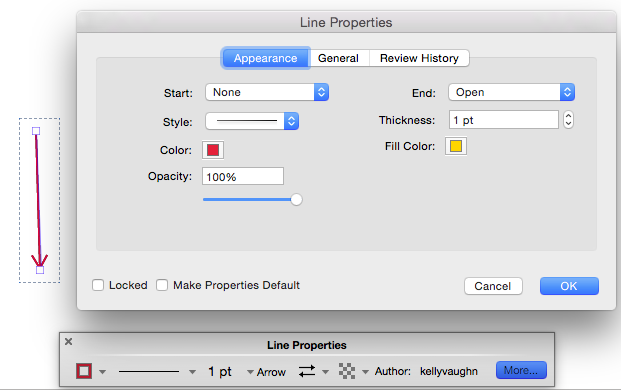
Lines and drawing markups have line thicknesses available, as well as both fill and stroke colors. Interestingly, the color fields are and "Color" and "Fill Color." So Acrobat views what we commonly know as the stroke color to be the main color. I wrote an entire article about that, and why I find it frustrating: Acrobat Rectangle Tool: Why Do You Disappoint Me So?

Line Properties
Most of the Properties dialog boxes are pretty straightforward, without too many options.
Underline Properties 
Pencil Mark Properties
But once you start dealing with text, the Properties dialog box and the Text Properties tool get more complicated. What's interesting is that the old Properties toolbar gives you WAY more options than the newfangled Text Comment Properties. In the new tool, gone are the options for bold, italic, subscript, and superscript. However, there is now a choice for increasing the line spacing, which is nice. I don't know that I'd ever use it, though. I use the text comments for filling out forms, rather than for typing paragraphs of text. Another interesting thing to note is that the Text Properties no longer works with the old Properties toolbar. However, the pop-up text properties will still work with the old Properties toolbar.

Newfangled Text Comment Properties
Pop-Up Text Properties - Properties Toolbar
While I really like the new user interface of the Color Picker, Text Properties, and Line Thickness Tools, as well as how they be added to the Quick Tools, I still usually default to using the old Properties toolbar, because it offers more options: sticky note icons, start and end arrowheads, line style, type styling, and has many more color choices available.

Quick Tools: Color Picker, Line Weights, Text Properties

Quick Tool: Color Picker Color Choices

Quick Tool: Line Thickness


Properties Toolbar with Lots of Color Choices

I really wish Adobe has incorporated all the options from the Properties Toolbar into the new quick Tools. Hopefully, they will address these issues in a future release, as they have done with other things I've complained about incessantly.

This is one of the topics I discuss at length in my Lynda course on PDF commenting.

Using the Properties toolbar from Adobe Acrobat DC: PDF Commenting for AEC by Kelly Vaughn

Edit: 9-13-918
If you need an easier way to control the properties of annotations in your PDF, check out my article on Bluebeam Revu. It's an amazing program designed specifically to meet the needs of users in Architecture, Engineering, and Construction. It has a huge Properties panel where you can edit all the properties of each individual object (right down to the X-Y coordinates and angle of rotation). You can also edit the properties of the document itself right in that panel as well. It's amazing!

Tuesday, May 14, 2013

Create a Herringbone Brick Pattern Using InDesign and Illustrator

This video will teach you how to:

  • Make InDesign table cells with exact width and height.
  • Locate Illustrator's plethora of built-in swatch libraries.
  • Delete the default swatches built into every Illustrator document, and replace them with your own.
  • Export the swatches as an ASE file.
  • Load the swatches into InDesign.
  • Colorize table cells and strokes by dragging and dropping by the swatch panel.
  • Create an Illustrator pattern swatch.

Tuesday, April 30, 2013

Ignite! 2013: Making Patterns in InDesign

This was the slideshow I created for my Ignite presentation at the 2013 Print and ePublishing conference. The original presentation was 5 minutes long, with the slides auto-advancing every 15 seconds. In this video, I opted to take a bit more time for each slide, so I could better explain each pattern and how it was created. I discuss TeaCup PatternMaker, InDesign tables, Illustrator graphic styles, InDesign stroke styles, type on a path, and knitting.


Wednesday, March 6, 2013

Check out my New YouTube Channel!

So after four years of writing blog posts, I have finally decided to start my own YouTube channel. In some ways, writing blog posts has been my entry point into the world InDesign training. With a blog post, I can work on it for weeks, create the perfect screenshot, fix typos, and present something really polished. But I've found videos a bit harder, because historically (unbeknowst to me until recently), I use a lot of filler words, I speak too quickly, and I skip steps. And so, creating videos has been much harder for me.

But for the last two years, I've been running the Raleigh InDesign User Group. And those wonderful IDUG members kept showing up, again and again, and listened to me speak too quickly, while doing tutorials on too small of a screen. Maybe they just came for the raffle prizes, but regardless, their continued attendance gave me plenty of practice teaching others. And I owe my YouTube channel to them. So check it out. I'd love to hear what you think. Many of my first videos are topics that I first demonstrated at our IDUG meetings.

Here is one of my favorites. If you like it, be sure to subscribe to my YouTube channel. It's not flashy, but it's chock full of good content. I think you'll like it.

PDF Commenting in Acrobat 9: Part 1: Using the Text Edit Tools