 |
| Square Foot Garden Bed Plan using InDesign Cell Styles |
Thursday, March 19, 2015
Supercharge Your Graphics with Cell Styles
I am in the process of building raised garden beds and I needed a way to plan the beds and easily edit what is planted in each square. Learn how I used InDesign Cell Styles to aid me in planning my new raised garden beds. Read the entire article at InDesign Secrets.


Wednesday, March 18, 2015
A Workaround When Acrobat says a PDF is an "Unsupported File Type"
Today I needed to download a PDF from a website. I use Safari, and usually I can just save the file as a PDF using File > Save As.

"Acrobat could not open 'Ecomar-e.pdf' because it is either not a supported file type of because the file has been damaged (for example, it was sent as an attachment and wasn't correctly decoded). To create an Adobe PDF document, go to the source application. Then choose Save as Adobe PDF from the PDF drop down in the Print dialog.

So next I tried File > Export as PDF. But I got the same result.

In the past, I've used Preview when Acrobat can't open PDF files. But when I tried that today, I got the following message:

So I took a look at the file properties in Finder. For whatever reason, the file is 0KB.

So I decided to try using Acrobat to open the PDF. It's not well known, but there is a way to open a PDF directly from Acrobat. But you won't find it under File > Open. You'll find it under File > Create > PDF from Web Page...

If I recall correctly, years ago this feature may have been in the File > Open section of Acrobat, because notice the keyboard shortcut for this command: Shift + Cmd + O (which is just one key different than the Shift + O of File > Open). That brings up the following dialog box.

I just pasted in the URL of the PDF I was trying top open and clicked "Create." And Voila! The PDF opened perfectly!
But there is much more to this tool than first meets the eye. Create PDF from Web Page does just when the name says: it creates PDFs from HTML files. If you click on the "Settings" button, you are presented with a few options.
 |
| Web Page Conversion Settings: General Tab |
 |
| Web Page Conversion Settings: Page Layout |
 |
| Web Page Conversion Settings > General > HTML Conversion Settings |
Since my document was already a PDF, I didn't need to adjust any of the HTML conversion settings. But it is nice to know that they are there.
Monday, March 16, 2015
Overcoming Limitations with Find/Change and Conditional Text
InDesign has a serious limitation with regard to Find/Change and Conditional text. Learn what the limitation is, and how to (sort of) work around it. Read the entire article at InDesign Secrets. http://indesignsecrets.com/limitations-findchange-in-conditional-text.php

Wednesday, March 11, 2015
Why Does InDesign Think There are 69 days in the Month?
This is a continuation of a post I wrote a couple of years ago: What To Do When InDesign Text Variables Don't Display Correctly
Text Variable Error Type 3: Incorrect Date Format
A client recently wanted to modify the date format used in the footers of her document. So she sent me this to use for the new format: YYYYMMDD.
I pasted this text into the text variable date modification field and resumed editing the document. While I was working, I noticed that the date format ended not in today's date, but in 69. Wait a minute! There are never 69 days in a month!
 |
| DD looks wrong! There are not 69 days in the month |
I thought perhaps this 69 represented some other type of modification data, so I checked the InDesign Help file for what could be represented by DD (as opposed to dd). There was nothing! Out of curiosity, I changed the DD to dd and the date was now correct.
 |
| Correct! This file was modified on the 10th of the month |
The first time this happened was on March 10. The DD format gave me the number 69. Today (March 11) I opened the file and the DD format gave me 70.
After a little thinking, I looked at my calendar and discovered that today is the 70th day in the calendar year. So I opened up a file that had a different modification date and experimented with the DD variable to see what it gave me.
 |
| DD will output the day of the year! |
It turns out the DD is actually a variable not documented in the InDesign help file.
Unlike other variables, which can be typed as either uppercase or lowercase, the date format is case sensitive.
- dd will give you the day of the month.
- DD will give you the day of the year.
If your text variables are giving you trouble, please also check out this post on InDesign Secrets: What to Know Before Using Live Captions and Text Variables.
Monday, March 2, 2015
Making Patterns with Conditional Text
Besides being an full-time InDesign user, I'm also avid knitter. While many people doodle cartoon characters during meetings, I tend to doodle knitting pattern ideas. Quite often in my life, my love for InDesign and pattern-making collide and the result is a blog post.
Read the entire article at InDesign Secrets.


Read the entire article at InDesign Secrets.
Sunday, February 22, 2015
Using PatternMaker Lines to Recreate Striped Knitted Fabric
I have a beautiful striped blue dress that I love to wear in the spring and summer. It's knitted fabric, which makes it stretchy and comfortable. But it's also a rather thick fabric (due to the knitting technique used). It doesn't wrinkle and it's very flattering. I recently took a closer look at the fabric to see if I could determine how it was made and if I could recreate the look of the fabric in InDesign using Teacup PatternMaker.
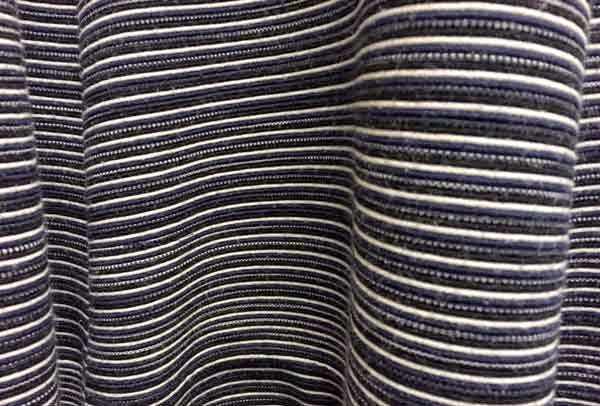 |
| Blue Dress Fabric |
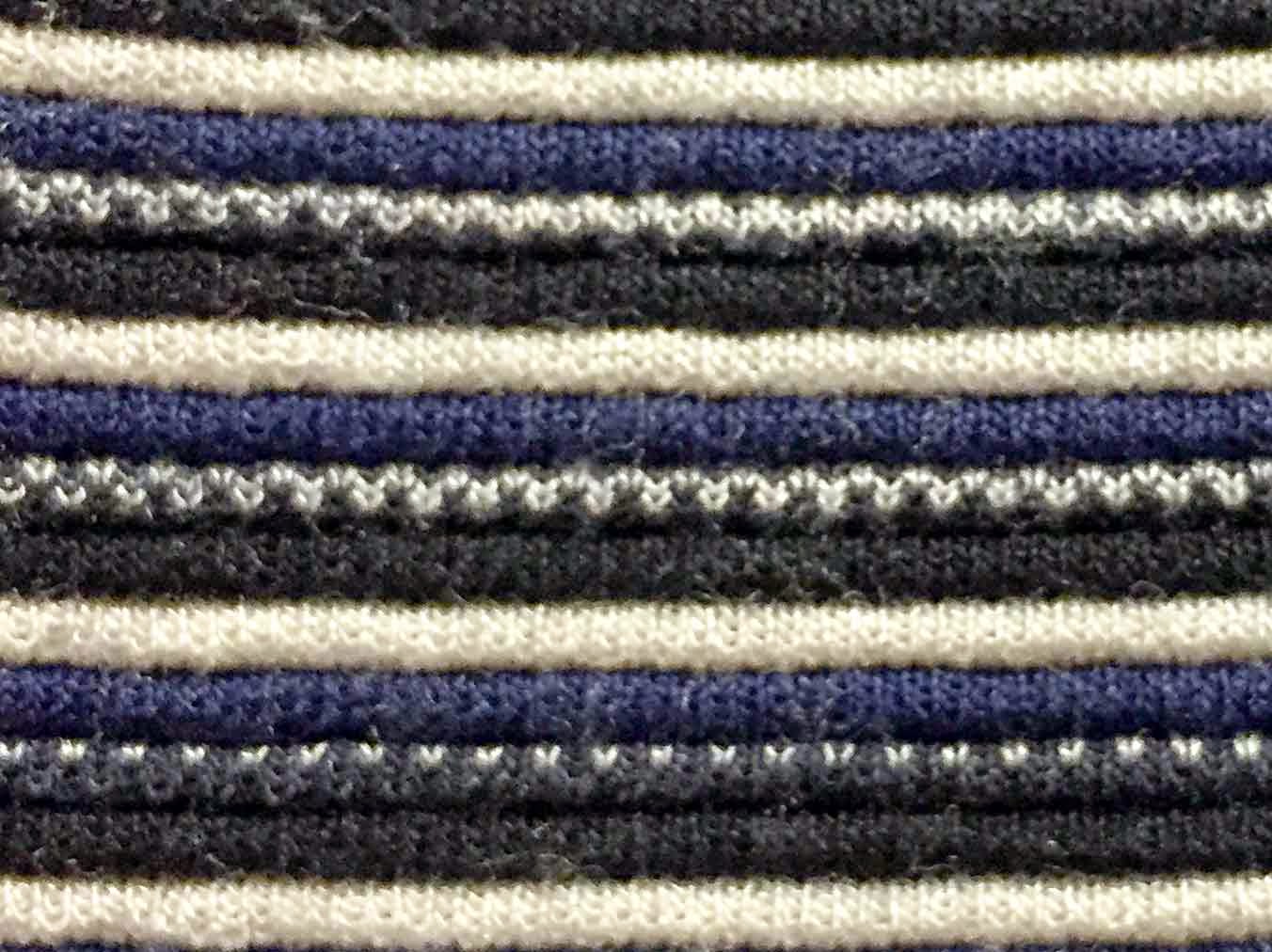 |
| Blue Dress Fabric: Close Up |
1. White
2. Black
3. Two-tone: Black and White
4. Blue
The second thing I noticed about the fabric was that it was jacquard knitting. Jacquard knitting is a complex type of multi-color knitting whereby the floats created by the color switches will be confined to the inside of the finished project. What that means to the person wearing the fabric is that the interior of the fabric doesn't snag when you wear or wash it. You'll see this technique used in those fancy knitted ski sweaters that cost a couple hundred dollars each. The cheap sweaters don't employ this technique because it's more complicated to produce. That's not going to affect how I recreate the pattern using PatternMaker; I just thought it was something interesting to note.
The third thing I noticed about the fabric was that it was pin tucked, resting in subtle horizontal ridges along the width of the fabric. It makes each stripe puff up a little bit, so that even if the fabric was all in a single color, subtle horizontal ridges would still exist.
Believe it or not, we can create this pattern using only 5 objects! So let's recreate this pattern using PatternMaker!
1. Make a large rectangle and fill it with black lines using the following settings.
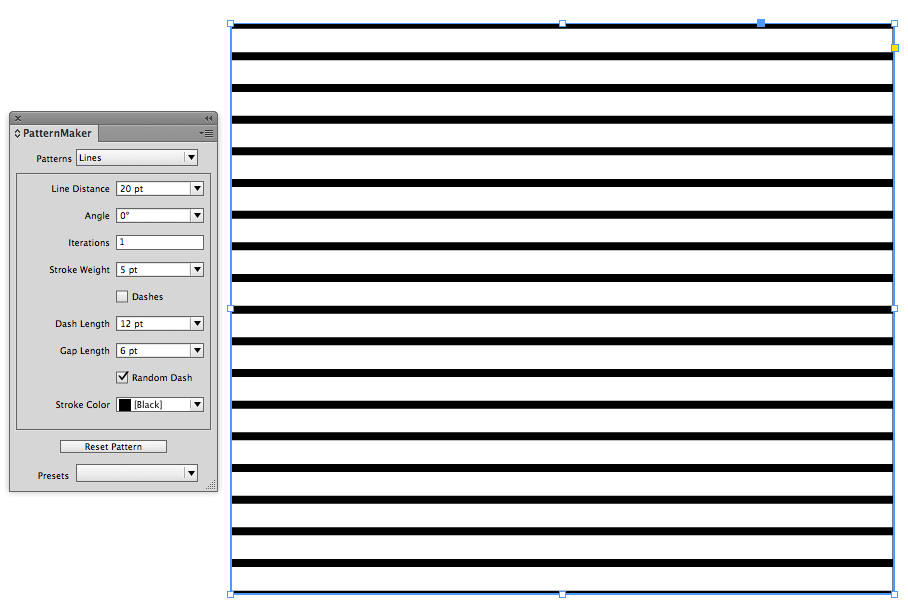 |
| Black PatternMaker Lines |

3. Change your Cursor Key preference to 1 pt. Since we'll be reusing (and nudging) the black lines for the rest of the design, it's important to set the cursor key preference so that when we nudge, we'll get the exact alignment of the lines.
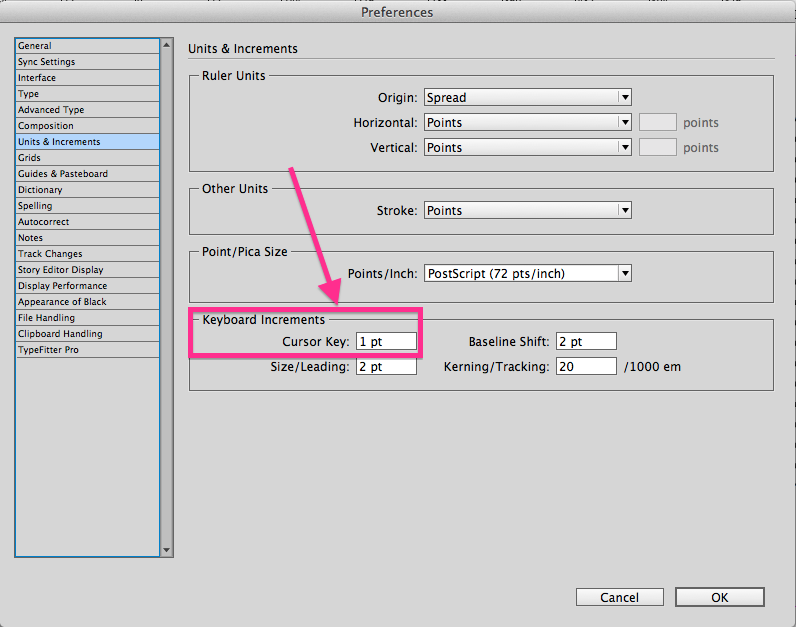 |
| Change Cursor Key Preference |
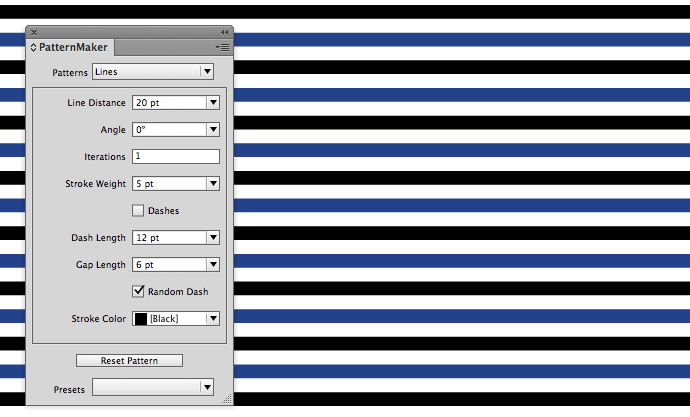 |
| Black and Blue Lines |
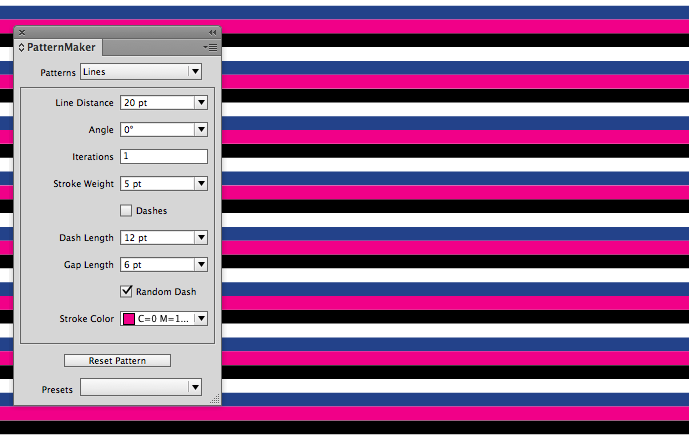 |
| Use Magenta to Align the Lines |
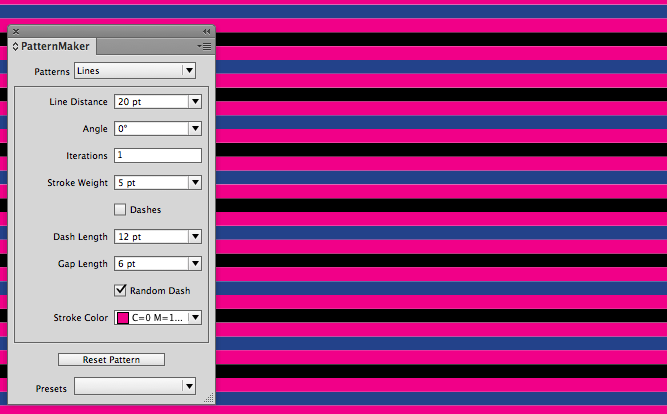 |
| Duplicate the Magenta Lines |
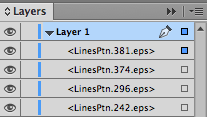 |
| Auto-Generated Confusing Layer Names |
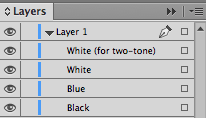 |
| Understandable Layer Names |
8. Change the magenta to white: In the Layers panel, Shift + Click on the little squares next to the two White layers. Then change the pattern stroke color to white.

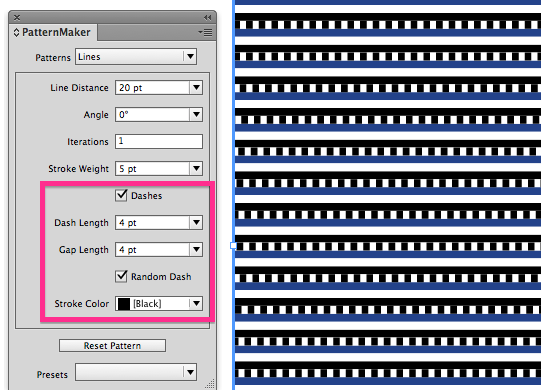 |
| Dashed Line for two-tone stripe |
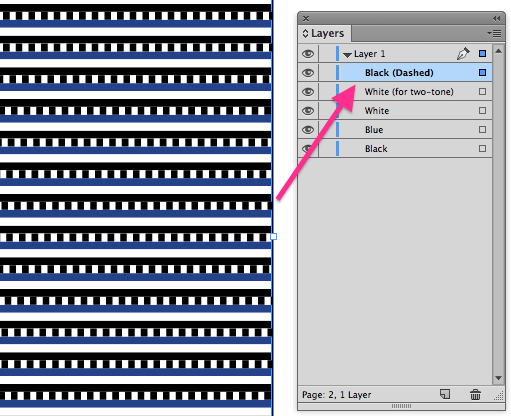 |
| Be Sure to Change to Layer Name |
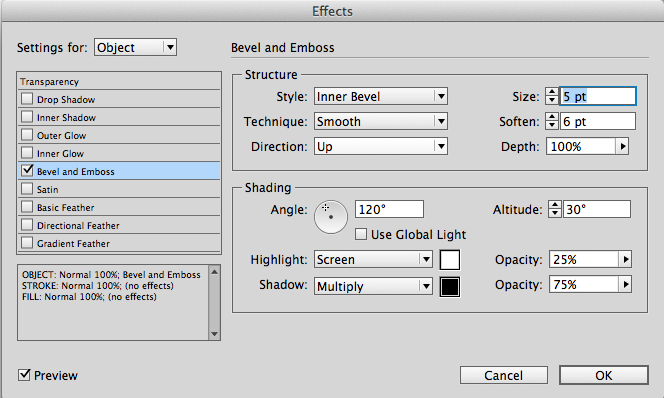 |
| Bevel and Emboss Settings for Pintuck |
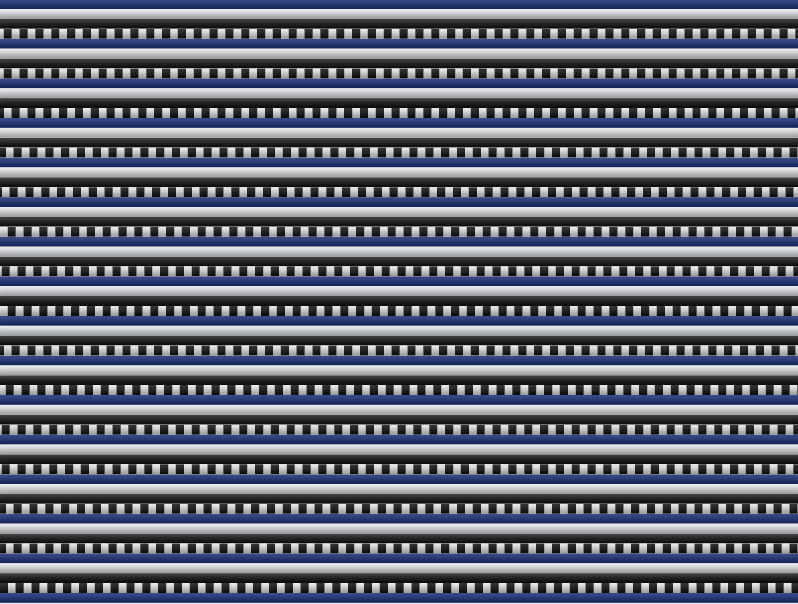 | ||
Completed Blue Dress Fabric Pattern
|
Tuesday, February 3, 2015
PePcon Swag Collection
I have been attending the Print and ePublishing conference since it's inaugural year in 2010. Along the way, I have accumulated conference swag from the conference as it traveled across the county each year.
The first PePcon brought simple swag, including this light-up flash drive.
At PePcon #1, I also opted to purchase a conference T-shirt.
One interesting piece of memorabilia isn't actually PePcon swag, but I'm including it in this list because I got it at PePcon. And I am the only PePcon attendee who has one. Russell Viers spoke at PePcon in 2010 (as he does every year) and he was wearing a custom mechanic shirt featuring his ACE logos on the arm. After his session, during the break, I commented to him that I liked his shirt. Without missing a beat, he said, "You want it? I got a bunch of them made up." I was a little taken aback, but I said yes anyway. And so now I have a Russell shirt.
Subsequent PePcons frequently featured a variety of kitchen gadgets, such as a jar opener, a fridge magnet, and a pan scraper.


PePcon 2011 and subsequent all featured a drinking vessel of some sort. The first conference logo was in Trajan.
2012 brought new branding. Very nice!
Five of my items are speaker gifts. The first four years of PePcon, I spoke at Ignite! InDesign (which is a type of open mic night, where brave souls get 5 minutes to speak with slides auto-advancing every 15 seconds behind them). Sometimes the Ignite speakers get their own special swag. Other times, it's the same as what the main session speakers get.
In 2014, they finally let me speak on the Big Stage! The official conference speakers get a few extra goodies in their conference bag, and this fleece beanie was one of them.
Also acquired in 2014 was a name badge with the special red SPEAKER ribbon on the bottom!
All the swag comes in a conference bag. I only have one of them left.

This list doesn't even include all the notepads, pens, styluses, and other similar goodies that show up in the bags every year. Some vendors also offer their own logo'd swag at their tables, such as insulated drinking cups and iPad stands.
I do hope you'll join me at PePcon. Also note that David and Anne-Marie, the wonderful people behind PePcon, are now putting on other conferences as well, including The InDesign Conference and The Photoshop Conference (which in 2015 will be held concurrently and at the same location as The InDesign Conference).
See you at PePcon!
Edit 3-19-14
I found another piece of PePcon swag! I'm pretty sure this one if from Chicago in 2014, but I'm not entirely sure. I remember thinking how nice it was to have conference pens, because for the first few years the pens were hotel-branded, rather than conference-branded.

The first PePcon brought simple swag, including this light-up flash drive.
 |
| Flash Drive, Seattle 2010 |
 |
| PePcon T-shirt, Seattle 2010 |
 |
| Custom Adobe Mechanic shirt from Russell Viers |
 |
| Adobe Patches |
PePcon 2011 and subsequent all featured a drinking vessel of some sort. The first conference logo was in Trajan.
 |
| 2011, Seattle |
 |
| 2011, Seattle |
 |
| 2012, San Francisco |
 |
| 2013, Austin |
 |
| 2014, Chicago |
I also got a lovely 18" long polystyrene ruler with six different units of measurement, including agates and ciceros!
 |
| 2013, Austin |
Five of my items are speaker gifts. The first four years of PePcon, I spoke at Ignite! InDesign (which is a type of open mic night, where brave souls get 5 minutes to speak with slides auto-advancing every 15 seconds behind them). Sometimes the Ignite speakers get their own special swag. Other times, it's the same as what the main session speakers get.
 |
| 2010: Magnet (Ignite speakers only) |
 |
| 2011: Speaker bag (same as main session speakers) |
 |
| 2012: Umbrella (Ignite speakers only) |
 |
| 2012: Umbrella (Ignite speakers only) |
 |
| 2013: "Where the Weird Things Are" T-shirt (same as main session speakers) |
 |
| 2014, Fleece Beanie |
 |
| 2014 Attendee (and SPEAKER) badge |
Some of the swag from PePcon isn't tangible goods, but rather software and plugins. Often, the various InDesign software developers who exhibit at the conference will offer some sort of coupon code if you visit their table. 2010 PePcon was where I got my first copy of TeaCup PatternMaker, which launched me into several years of blogging about making patterns in InDesign.
This list doesn't even include all the notepads, pens, styluses, and other similar goodies that show up in the bags every year. Some vendors also offer their own logo'd swag at their tables, such as insulated drinking cups and iPad stands.
I do hope you'll join me at PePcon. Also note that David and Anne-Marie, the wonderful people behind PePcon, are now putting on other conferences as well, including The InDesign Conference and The Photoshop Conference (which in 2015 will be held concurrently and at the same location as The InDesign Conference).
See you at PePcon!
Edit 3-19-14
I found another piece of PePcon swag! I'm pretty sure this one if from Chicago in 2014, but I'm not entirely sure. I remember thinking how nice it was to have conference pens, because for the first few years the pens were hotel-branded, rather than conference-branded.
Subscribe to:
Posts
(
Atom
)